How to Add Documents to a Student via Trainer Portal

Overview
The Student Document upload module enables administrators to
securely upload, manage, and store student-related documents within individual
student profiles. This offers various benefits such as enhancing student
data management and improved document organisation and accessibility.

Step Tutorial
1. From the sidebar menu, go to Students >
search and select a student > click Documents tab > then click New.
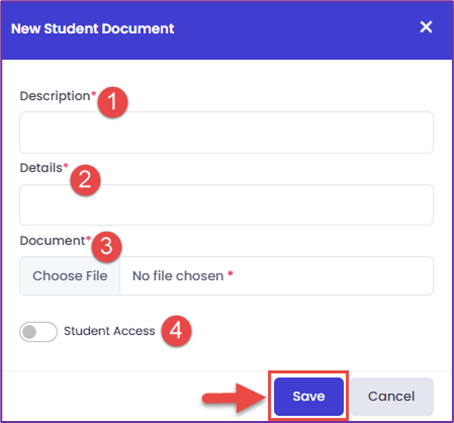
2. Fill in the following fields in the New Student Document
modal:
- Description – Enter a description for the document.
- Details – Add details about the document.
- Document – Upload the document by clicking the field.
- Student
Access – Determine if the student can access the document by turning on
the toggle.
Once done, click Save.

NOTE: Document should not exceed the 100mb file size limit, otherwise you will encounter this advice modal:
3. The added documents will be available in the Student
Documents table.
You can click the Action button if you wish to Edit or Delete the document.
And that’s how to add documents to a student via trainer
portal in the SMS!
Congratulations on completing this tutorial. We hope this has been helpful to you and your organisation. For any questions or concerns regarding this function, please reach out to the contact support via email.