How to Bulk Download Certificates, Statements of Attainment, and Unaccredited Certificates as Company Contact

 NOTE: This feature only downloads documents that have already been issued and are available for the selected enrolments. It does not create or issue new certificates.

Accessing the Enrolment List
- Log in and navigate to the Details page.
- Click the Enrolment tab.
Selecting Enrolments for Bulk Download
When certificate viewing is enabled for the client, a checkbox will appear as the first column in the Enrolment table.
Enrolments without an available document will not have a checkbox.
Tick the checkbox beside each enrolment you want to include in the download.
You can also select the checkbox in the table header to select all eligible enrolments currently displayed on the page.
NOTE: Your selected enrolments remain selected when you sort, search, or move between pages, allowing you to build your selection across the full enrolment list.Downloading the Certificates
Once you have selected at least one enrolment, the Bulk Download Certification button will appear above the table.
- Select the enrolments you want to download.
- Click Bulk Download Certification.
- The system will collect the available document for each selected enrolment.
- The documents will be packaged into a single ZIP file.
- Download and open the ZIP file to access the individual documents.
The system uses the same document that would normally be available when selecting the certificate icon for an individual enrolment.
The ZIP file name includes the date and company name. For example:
2026-07-29-Acme Pty Ltd-Bulk-Certification.zip
Each document inside the ZIP file is named using the student's name, document number, and document type, making it easier to identify each file.
You can use the Group column and search functionality to quickly locate enrolments belonging to a particular group.
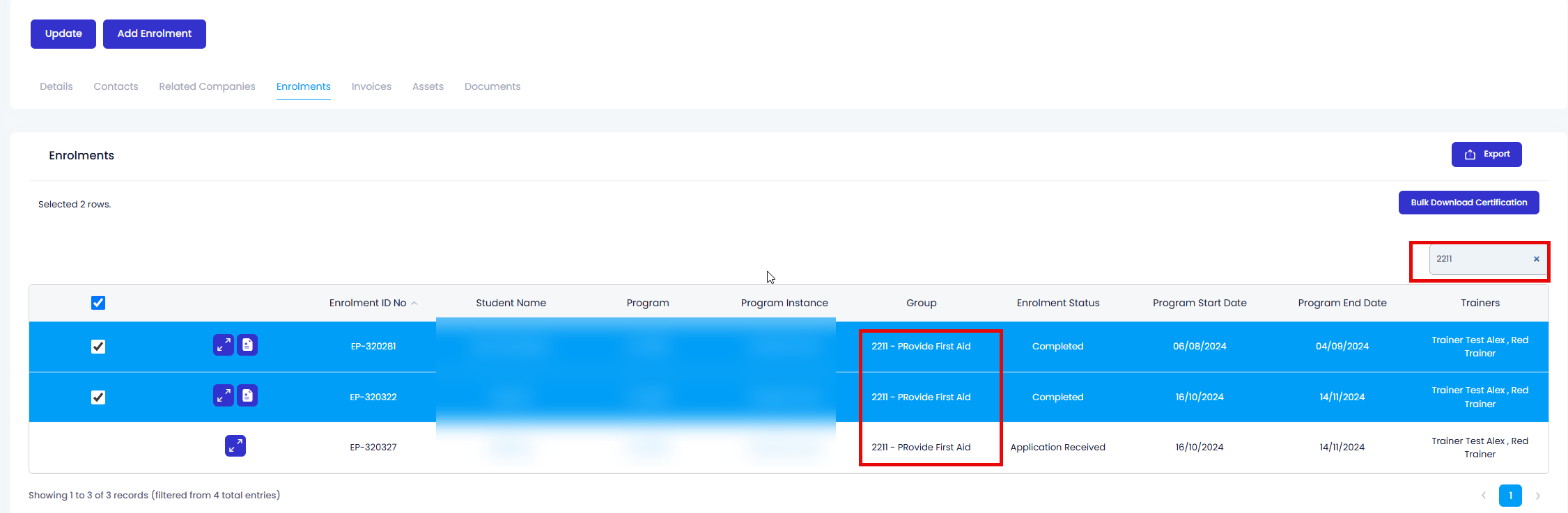
You can select enrolments with different document types in the same bulk download.
For example, your selection may include:
- A Certificate
- A Statement of Attainment
- An Unaccredited Certificate
The system will automatically retrieve the appropriate document for each enrolment and include all documents in the same ZIP file.
Admin users can also bulk download certificates from the Companies page.
- Navigate to the Companies page.
- Select the relevant company.
- Open the Enrolment tab.
The bulk download process follows the same logic for both Company Contacts and Admin users.