How to Generate Student Notes Report

Overview
The Student Notes Report is a newly added feature in the Reports section of the Student Management System (SMS). This report allows users to view, export, and analyse student notes. It includes a data table with inline and top-level filters, as well as an option to save reports for future use. Unlike other reports, it has a fixed set of fields for simplicity.
In this tutorial, we will guide you through the step-by-step process of generating a Student Notes Report.

Step Tutorial
1. From the sidebar menu, navigate to Reports, then select Student Notes tab.
2. On the Student Notes report page, you have the option to create a new report by clicking the New button.
This will open the New Student Notes Report modal:
- Name – Enter a name for the report
- Default – Toggle this ON if you want this report to be displayed each time you open the Student Notes Report page; otherwise, leave it OFF
Once done, click Save.

NOTE: After saving a new report, additional buttons will appear alongside the New button. These buttons allow you to manage existing Student Notes report.
The Save button lets you save the report for future use, while the Delete button allows you to delete an existing report that you no longer need.
If you already have existing reports, you may skip clicking the New button and simply select one from the dropdown menu.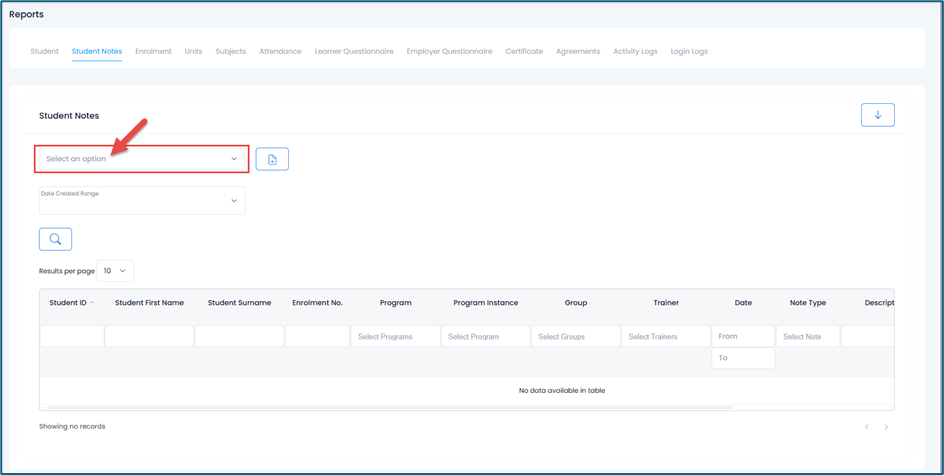
3. To run the report, select a Date Created Range filter from the dropdown menu, then click the Search icon to generate the report.
 IMPORTANT: Not selecting a Date Created Range filter will prevent you from running the report.
4. The data table displays the following columns, with inline filters available for each column to further refine the results:
- Student ID – Standard text filter
- Student First Name - Standard text filter
- Student Surname – Standard text filter
- Enrolment No. – Standard text filter
- Program – Multi-select filter showing the programs associated with your SMS. The data is derived from the enrolment ID in student notes, which links to a Program Instance and then to a Program.
- Program Instance – Multi-select filter showing the program instances associated with your SMS. The data is derived directly from the enrolment ID in student notes, which links to the relevant program instance.
- Group – Multi-select filter showing the groups associated with your SMS.
- Trainer – Multi-select filter of related trainers
- Date (From and To) – Date range filter
- Note Type – Multi-select filter that includes default and custom note types
- Description – Standard text filter
- Created By – Multi-select dropdown filter displaying the email addresses associated with the entries in Student Notes
- Hyperlink – Standard text filter
4. Click the Export button to download the report as an .xlsx file, allowing you to save, share, and further analyse the data using spreadsheet software such as Microsoft Excel.
NOTE: When a Trainer or Company Contact is logged in, only Student Notes linked to enrolments that belong to a group assigned to that Trainer and/or Company Contact will be displayed.And that's how to generate a Student Notes Report in the SMS!
Congratulations on completing this tutorial. We hope this has been helpful to you and your organisation. For any questions or concerns regarding this function, please reach out to the contact support via email.
FAQs
Why do some student notes not have an Enrolment No. in the report?
Not all student notes are linked to an enrolment. Notes created from emails sent from enrolment-related areas (e.g., Student Page → Enrolments or invoice emails) will automatically store an Enrolment ID. However, notes added manually via the Students > Notes page may not have an Enrolment No. unless it is assigned manually.
Can I customise the columns shown in the Student Notes Report?
No, the Student Notes Report uses a fixed set of fields and does not include an option to customise or select columns. This design ensures consistency and simplifies the reporting process for all users
Why are some student notes not appearing in the report?
The visibility of student notes may depend on your user role. If you are logged in as a Trainer or Company Contact, you will only see notes linked to enrolments that belong to groups assigned to you. Additionally, applied filters (such as date range or other criteria) may also limit the results displayed.
How do the Program, Program Instance, and Group filters work together?
These three filters are interdependent. Selecting a value in one filter automatically limits the available options in the other two to only those associated with your selection, ensuring that the report displays accurate and relevant data.