How to Publish for Signing, Email, or Download Digital Documents for Students
 Overview
Overview
Digital Docs works like a typical word processors used for creating, editing, formatting and printing text documents. Once created, Digital Docs has the capability to send the documents directly to the selected entity via email, publish it for signature or be exported as a PDF.
In this tutorial, we will show you how to email, download, or publish the digital document/s for student's signature.
 NOTE: This exclusive feature is only available for Performance and Compliance Plus Package subscribers. Unlock the full potential of your SMS with the Performance and Compliance Plus Package. To upgrade your plan and access this feature, please contact our Support team.
 Step Tutorial
1. Log in to your SMS Admin account and click on Students
2. Select your student
3. Go to the Enrolments Tab
4. Locate the enrolment and click the Action button.
5. Click Digital Docs
For steps 1 to 5, refer to the image below:
6. Select the Template by ticking the checkbox.
7. There are two types of Digital Documents:
- IF the selected template type is Standard, you may send it to the student via Email or Download it to your device. Which you can then print and/or send to student via other means. If you select Email, proceed to the next step.
- IF the selected template type is Signature, click on the Publish for Signing button to have this document signed by the student. Students can refer to this tutorial: How to Digitally Sign Documents as a Student?
- IF the selected template type is Standard, you may send it to the student via Email or Download it to your device. Which you can then print and/or send to student via other means. If you select Email, proceed to the next step.
- IF the selected template type is Signature, click on the Publish for Signing button to have this document signed by the student. Students can refer to this tutorial: How to Digitally Sign Documents as a Student?
For steps 6 and 7, refer to the images below:
Standard
Standard
Signature
NOTE: For Published for Signing and Downloaded Digital Documents, there are no further steps needed.
8. If you clicked on Email, a small window will appear asking you if you wish to edit the digital doc template before drafting the email.
- Click Cancel if you want to proceed with the email WITHOUT EDITING the digital doc template. Proceed to Step 11
- Click Cancel if you want to proceed with the email WITHOUT EDITING the digital doc template. Proceed to Step 11
- Click Ok if you want to edit the digital doc template before drafting the email.
For Step 8, refer to the image below:
9. The Digital Document Editor will show up. Apply your changes here. Changes made here will not apply to the original template.
Need help? Refer to this tutorial: How to Create a Digital Document?
Need help? Refer to this tutorial: How to Create a Digital Document?
10. Review all changes and if everything looks good, click Email.
For steps 9 and 10, refer to the image below:
10. Draft your email to the student here. Need help? Refer to this tutorial: How to Create or Edit Email Templates
11. Click on Preview to review the email or click Send Email.
Once Send Email is sent, you should see this confirmation message.
How to Add Digital Documents on Student's Agreement Tab
For proper documentation and easier navigation to send reminders; After publishing digital document/s for signing, it would also show under Student's Agreements tab:
This tab will not appear from the student's page if there are No Agreements relevant to the student to sign.
Here you will see when the agreement was added, who added it, what was the document type, the required signatures to complete the agreement, and who signed it.
The following actions are available once agreement tab is available on student's profile:
View | This will allow you to preview the contents of the Digital Documents sent for signing. |
Delete | This will allow you to delete the Digital Documents to sign for this student. |
External Party link | Clicking this action would provide you a link that you can attach to any e-mail so that you can inform the student of this particular agreement that needs their signature. |
Send Reminder | This would trigger a direct prompt from the system confirming if you would want to remind the student of this particular agreement that needs their signature. |
Receipt of the sent digital docs is also recorded under the Student Notes:
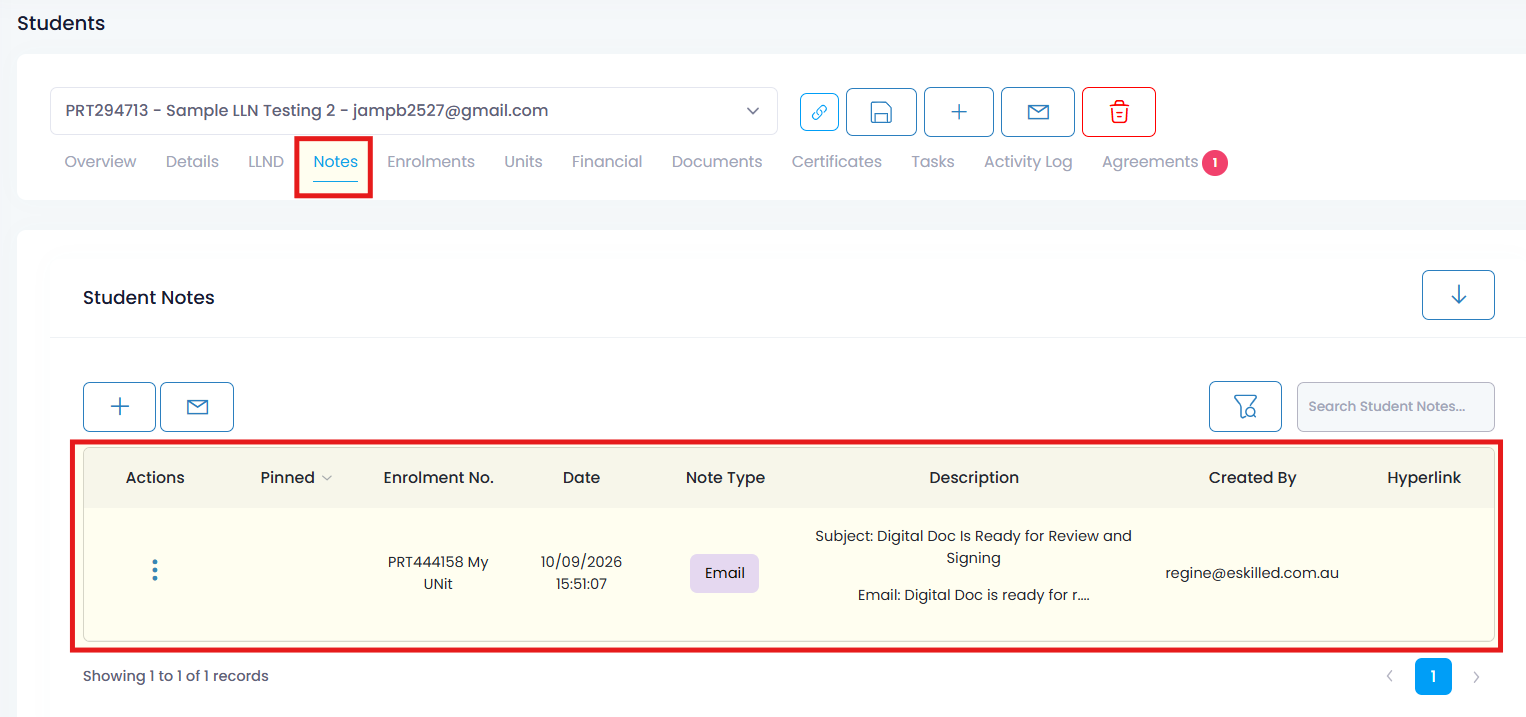
Note: This only records the email on Student Notes when a Student Signature is required.
Congratulations on completing this tutorial. We hope this has been helpful to you and your organisation. For any questions or concerns regarding this function, please reach out to us via email at support@eskilled.com.au.